

Dropdown menus are useful for providing users with a list of answers to choose from, for example 'Yes' or 'No'.
1. Beneath the list of entry, trade or membership forms, click the button 'Manage Questions':
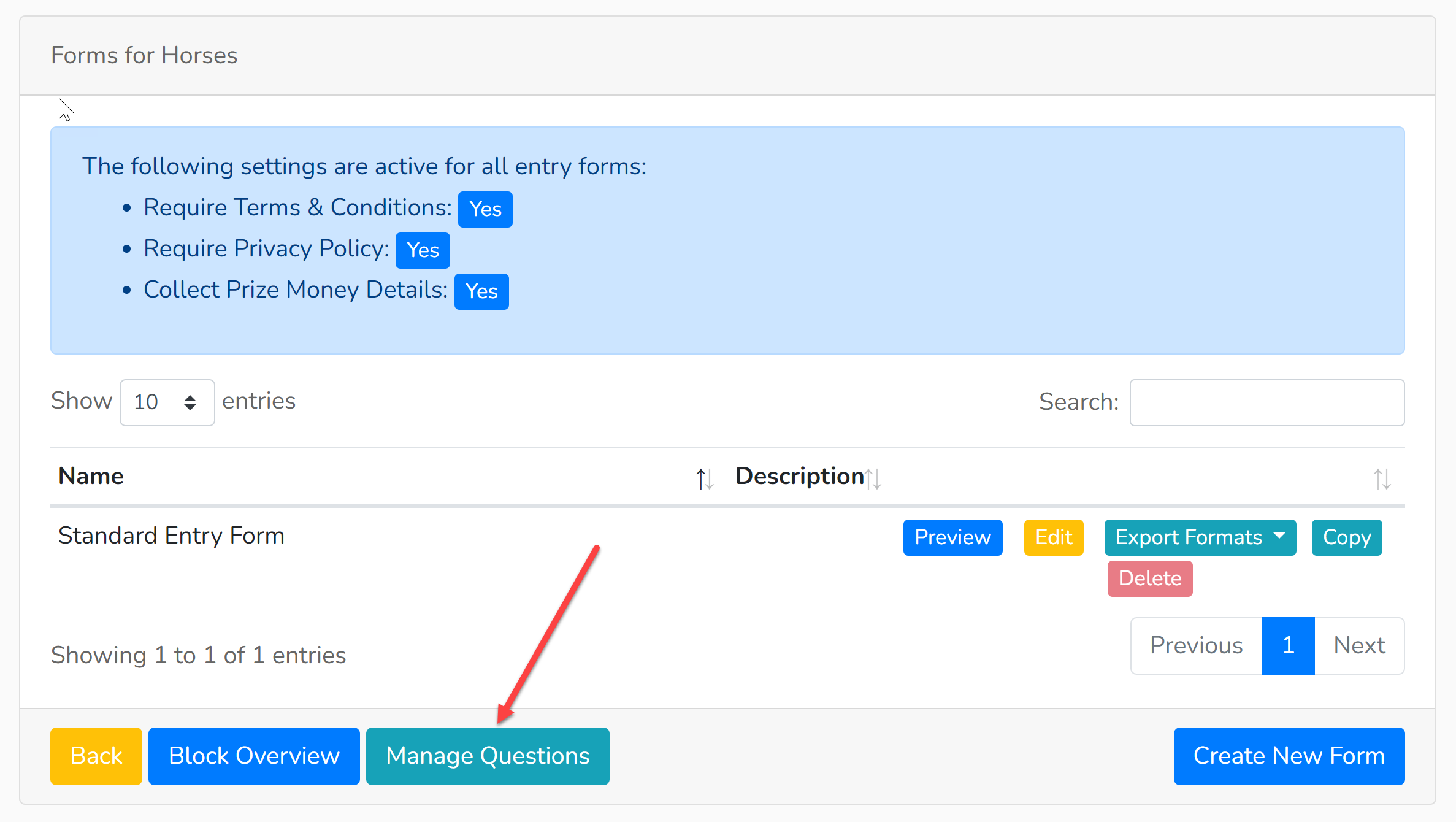
This will bring up a list of all your Custom Questions, plus some Showing Scene generated questions (e.g. bank details).
2. Beneath the list of Custom Questions, click 'Manage Dropdowns':
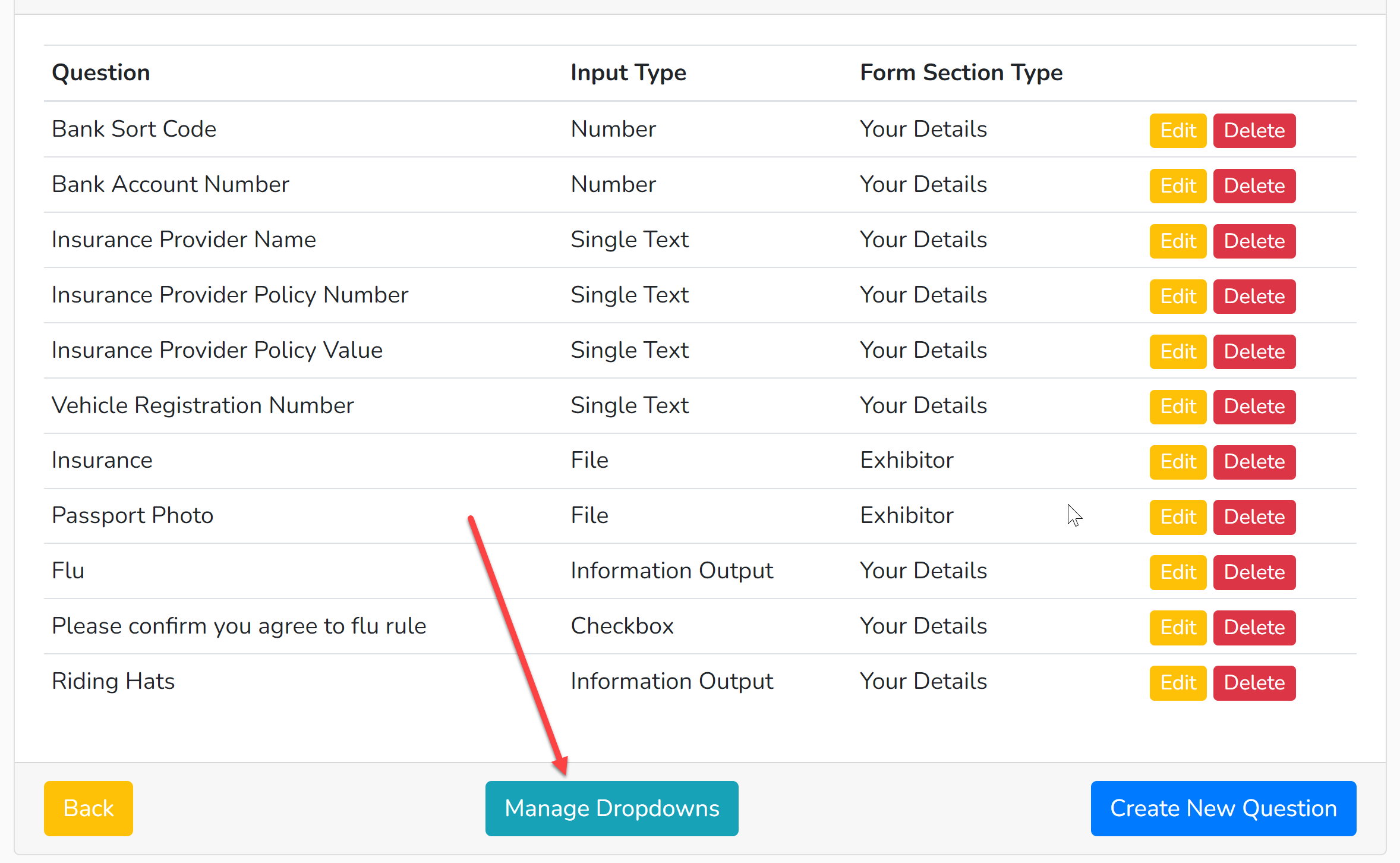
3. Select 'Create New Dropdown'.
4. In the field titled 'Name' select a name for this dropdown menu e.g. Yes/No. Only your admin team will be able to see this name.
5. Select 'Add Row' and input the first option that you would like to appear in your dropdown menu. Select 'Add Row' for all subsequent options that will need to appear in your list.
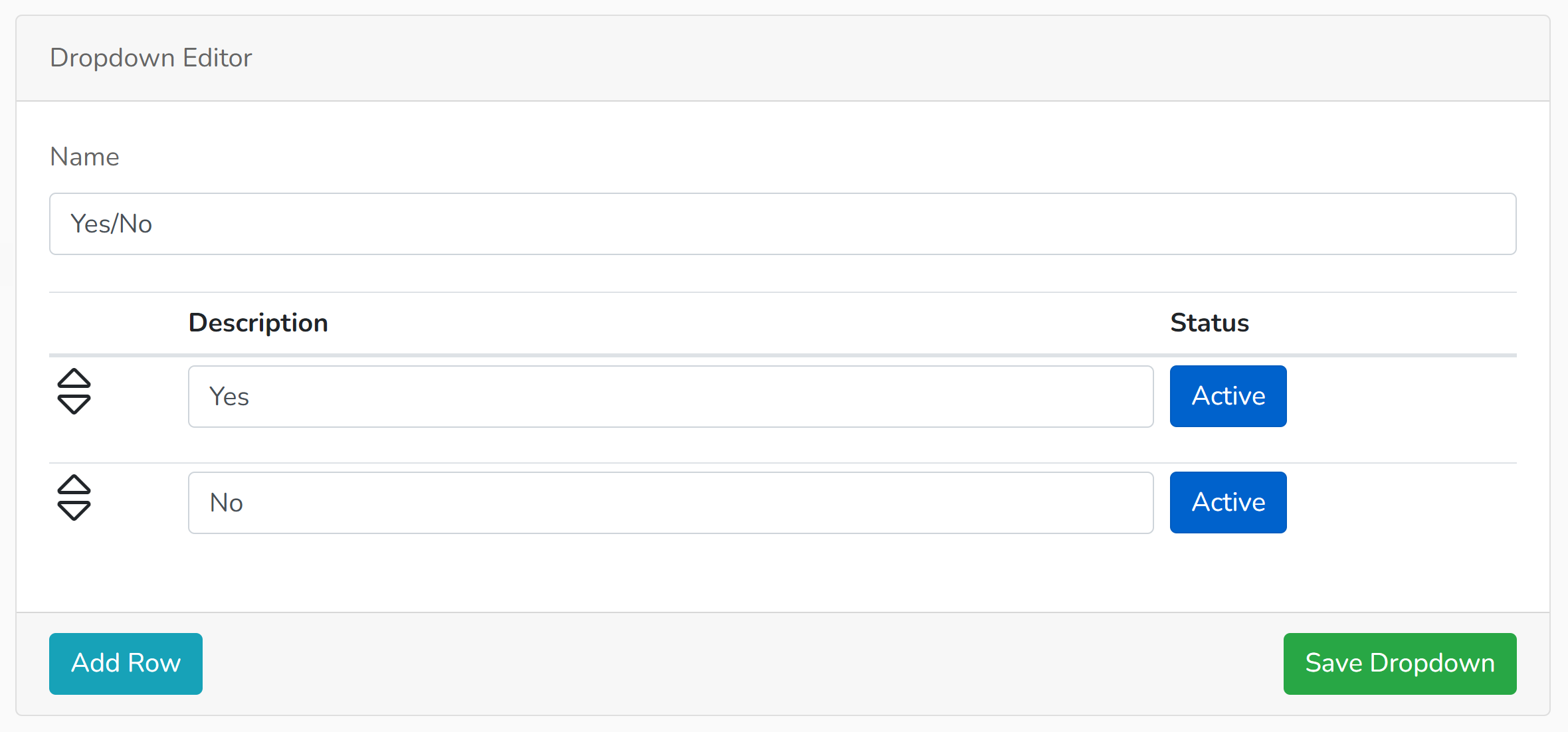
Rows can be changed but not deleted. If you do not wish for an option to show out, you can chose to click 'Active' and it will change the status of that row to 'Hidden'.
Remember to click 'Save Dropdown'.
6. To input this dropdown menu into a Custom Field, click here.