

It is only possible to include data in the results that has been gathered from an entry form. It therefore makes sense that results formatting is set through our 'Entry Forms' section.
Please note: results formatting needs to be set up for each entry form.
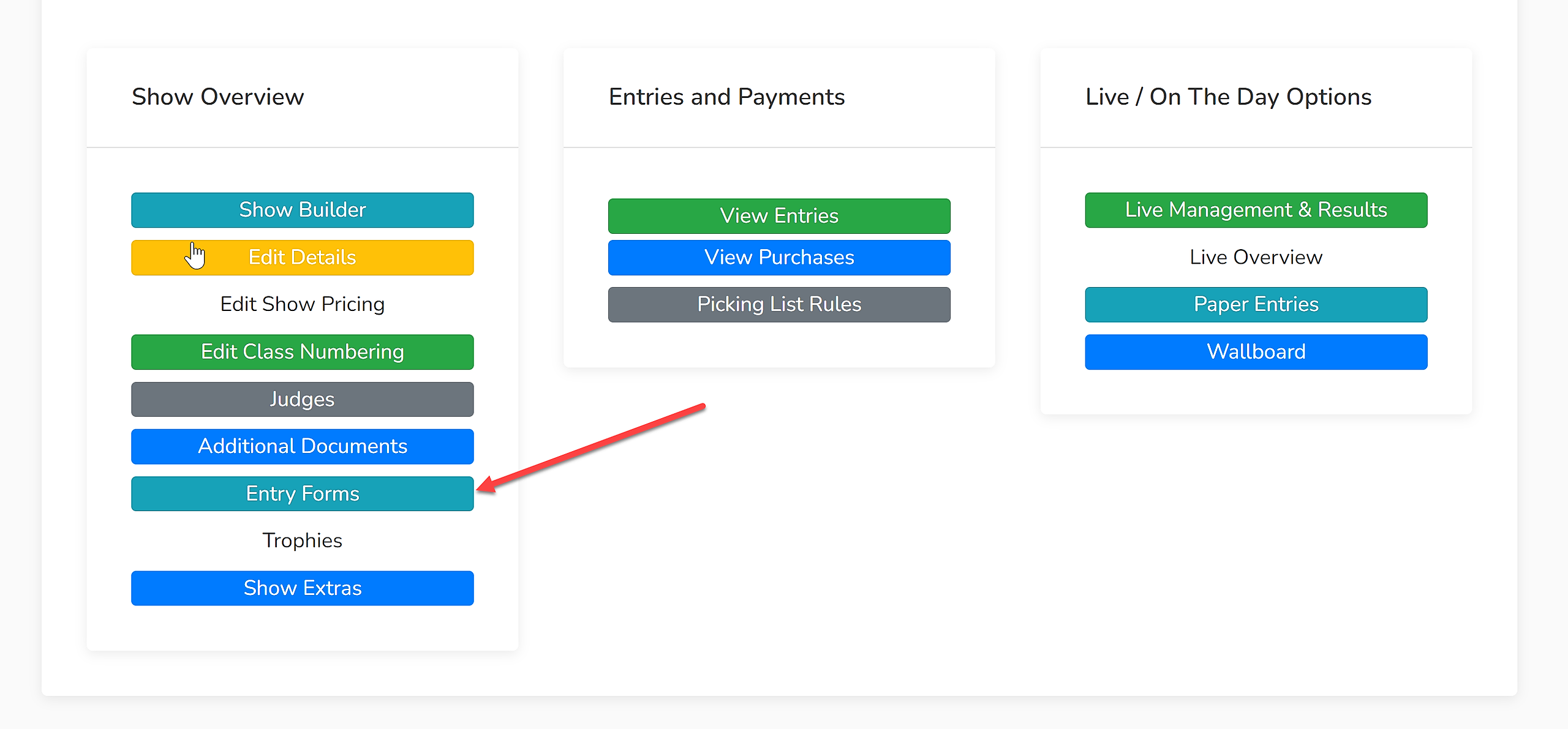
Beside each entry form is a dropdown menu titled 'Export Formats':
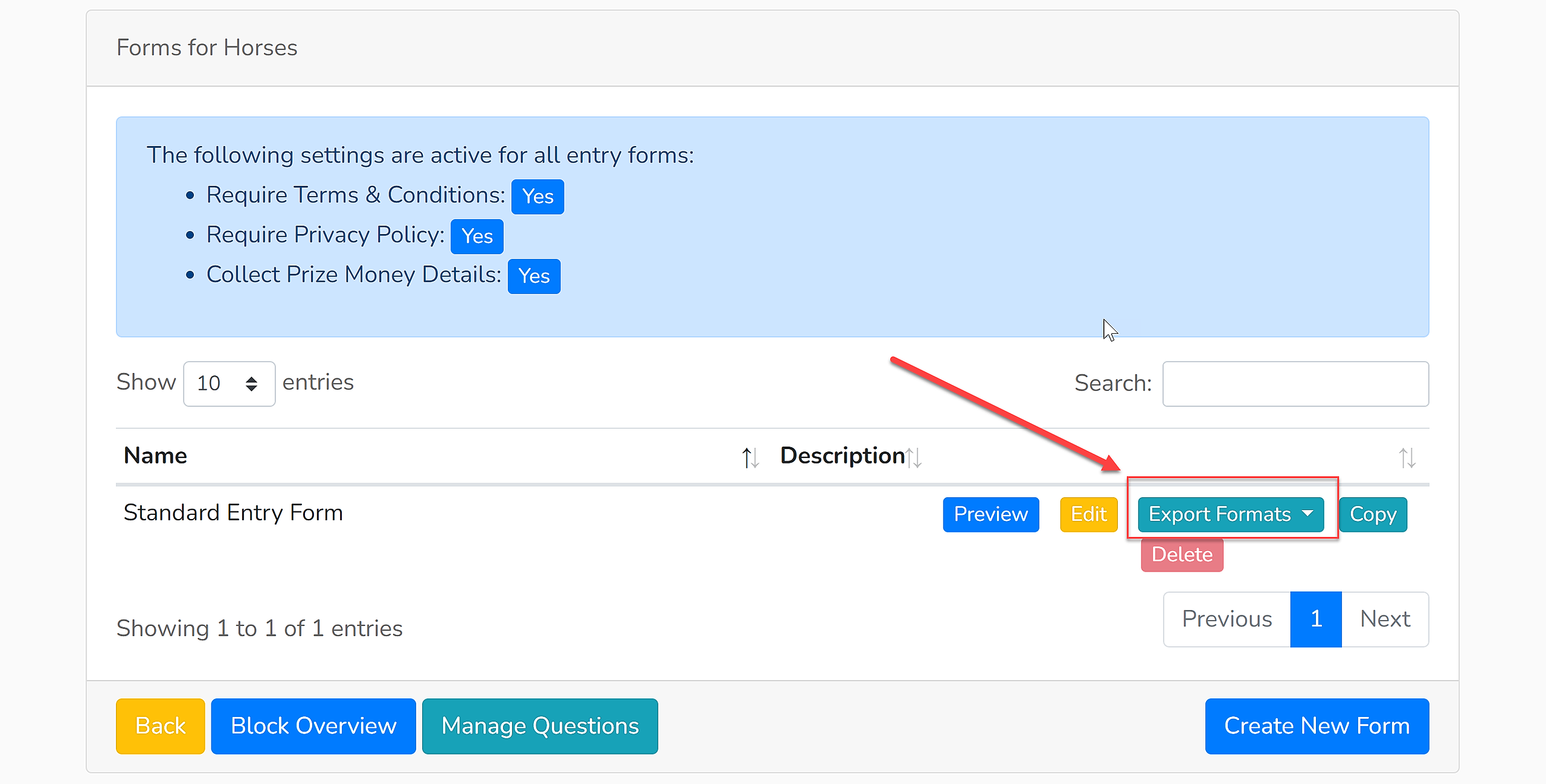
Use this dropdown menu to select 'Results'.
Results Content
First, set up the content of your results using the diagram and related explanations below, it should be noted that the 'Scheme Number' will automatically be included in the final export if numbers have been allocated.
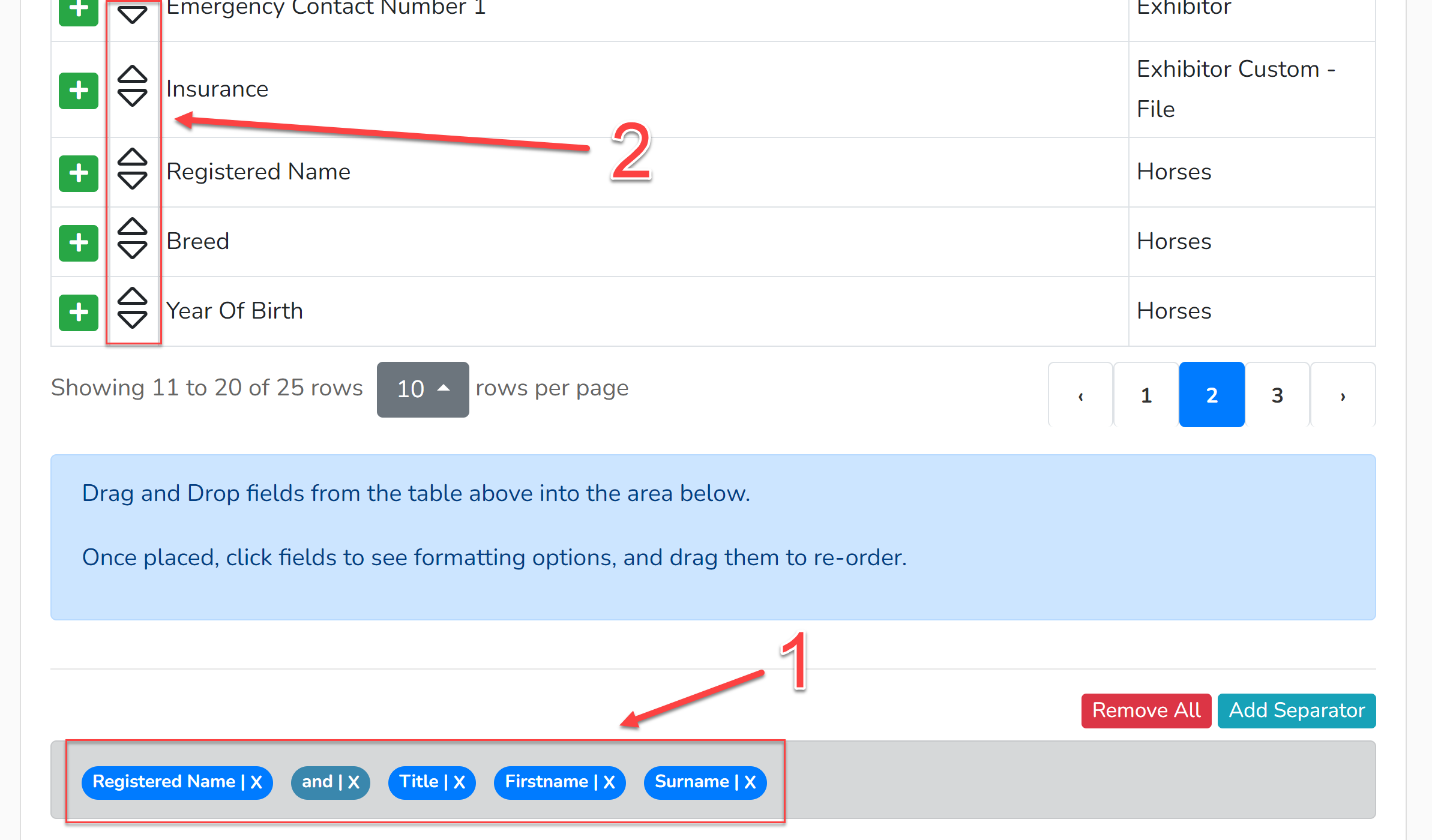
1. These are the fields that are currently held within your results - if they have not been previously edited, it will be the Showing Scene default format. These can be dragged around to change the order. Clicking the 'X' to the right of field will remove it from the results.
2. Additional fields can be added to the results by dragging and dropping a field into the format list. Be sure to check which 'Section' the field originates as data from 'Your Details' may be different from that of the 'Exhibitor'. For fields within your catalogue, hover over the field and a small black box will appear advising the form section from which the data originates.
Formatting Content
Each field can be individually formatted. Click each field and it will bring up a box which provides formatting options:
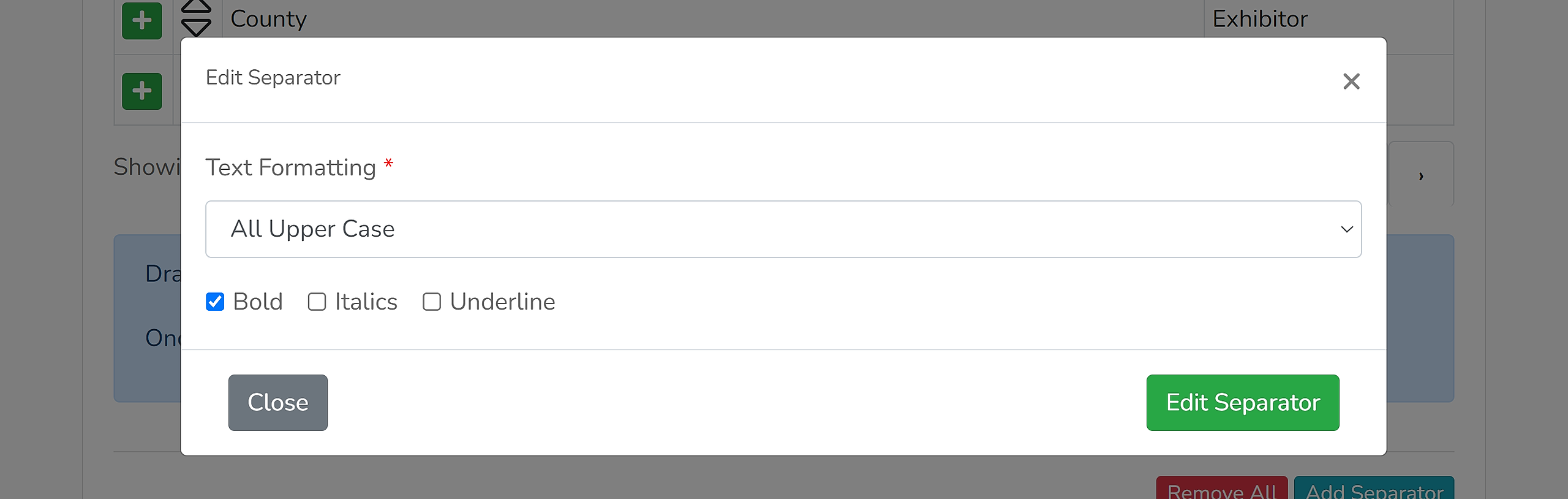
The text for that field will display according to the options selected from the dropdown menu:
Exactly as Entered - The text will be published with uppercase and lowercase letters exactly as the user input the data. e.g. chatterwell lovely Rose
All Upper Case - The text will be published in upper case lettering. e.g. CHATTERWELL LOVELY ROSE
All Lower Case - The text will be published in lower case lettering. e.g. chatterwell lovely rose
Capitalise First Word - The first word will begin with a capital letter. All other letters will remain exactly as input. e.g. ChattERwell LOVELY rOsE.
Title Case - All words in the field will begin with a capital letter. e.g. Chatterwell Lovely Rose
In addition, options for bold, italics or underlining may be selected.
Separators
There may also be a requirement to separate the different fields using commas, or an explanation such as 'b.' ahead of the year of birth or 'Sire:' and 'Dam:' in prefix of these fields. There may already be separators loaded into your results formatting which can be edited by clicking them. However, to add a new separator click the 'Add Separator' button:
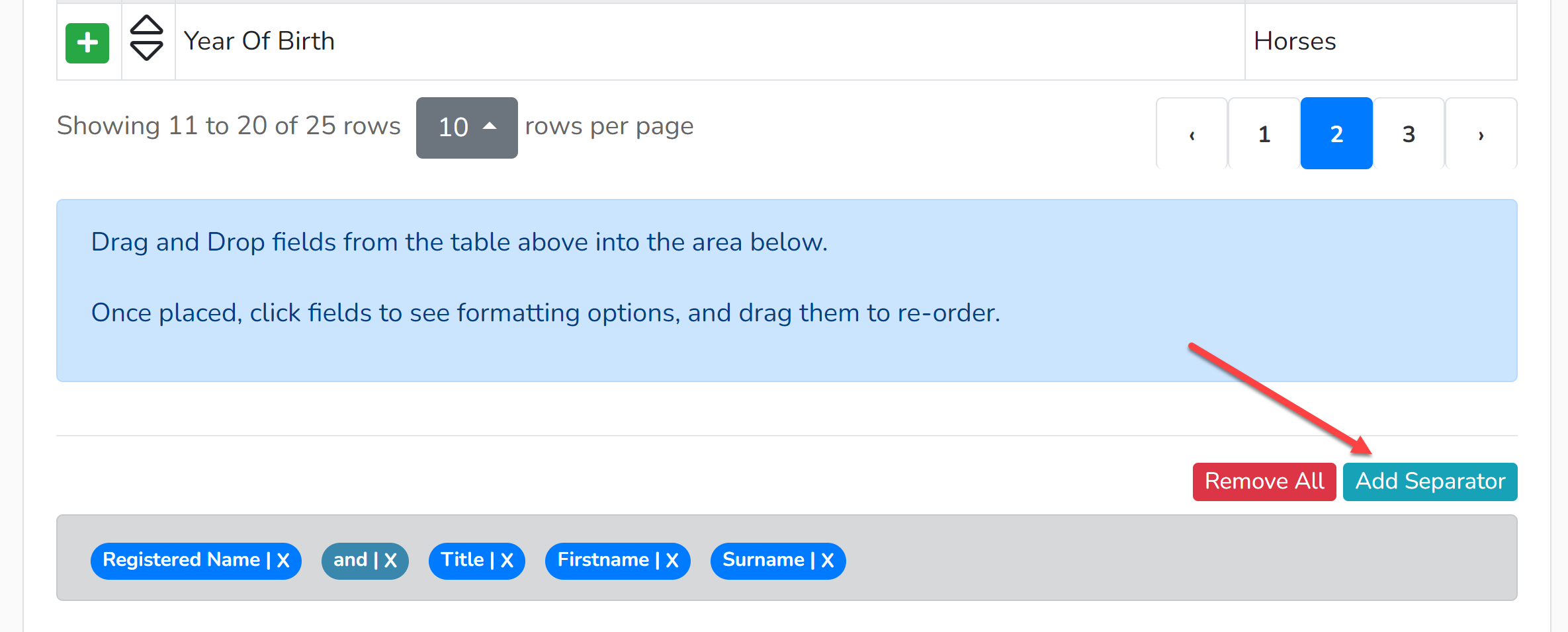
The new separator can then be dragged to the correct place in the list and edited accordingly. Separators are in a different shade of blue.
Results Publishing
Results will publish using this format across Showing Scene.