

When you sign up a new user to your organisation, a 'role' will need to be assigned. 'Organisation Administrator' is set up with access to everything within your organisation on Showing Scene, but not everybody within your organisation needs to access all areas. We provide several roles on the system in addition to 'Organisation Administrator', but all of the roles can be edited and new roles can be created to suit your organisation.
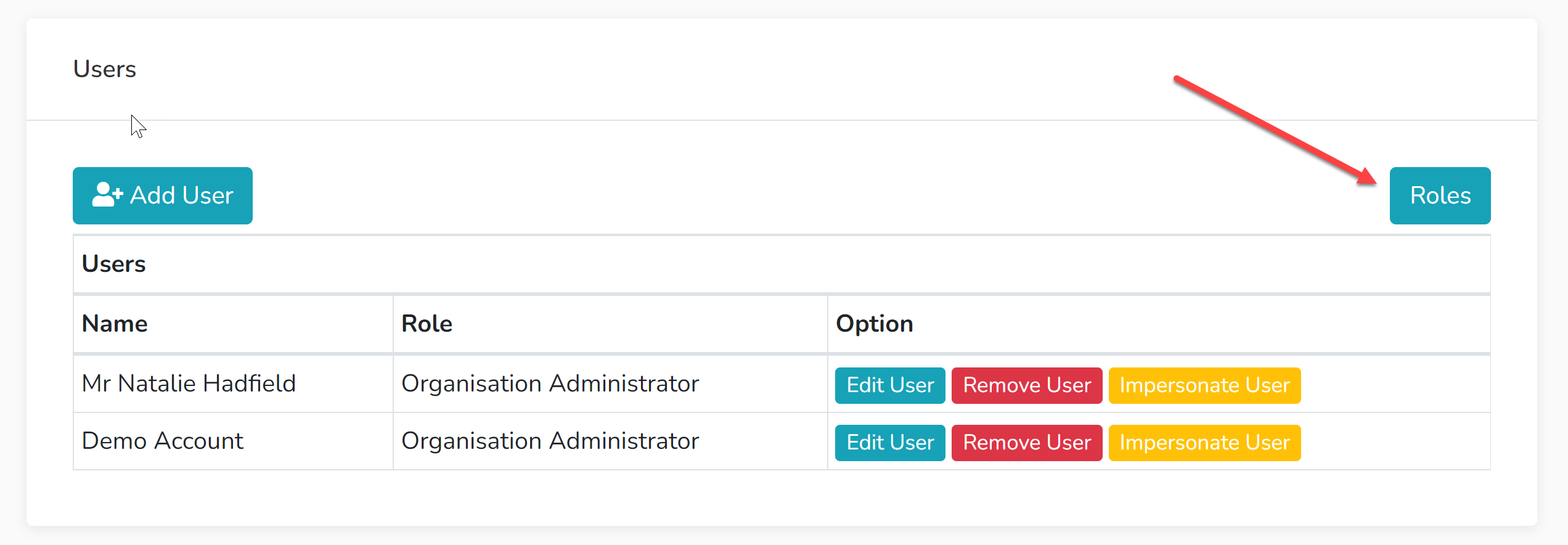
Within your CRM, select 'Users'.
Select 'Roles'.
Viewing or Changing Permissions to an Existing Role
Select a Role for which you wish to view the permissions granted.
Available Permissions - The left hand column contains all the permissions that are currently withheld. The green 'plus' icons will move a permission into the 'Role Permissions' column.
Role Permissions - The right hand column contains all the permissions that have been granted. The red 'minus' icons will move a permission out of the 'Role Permissions' column.
The 'i' icons beside each permission will detail an explanation.
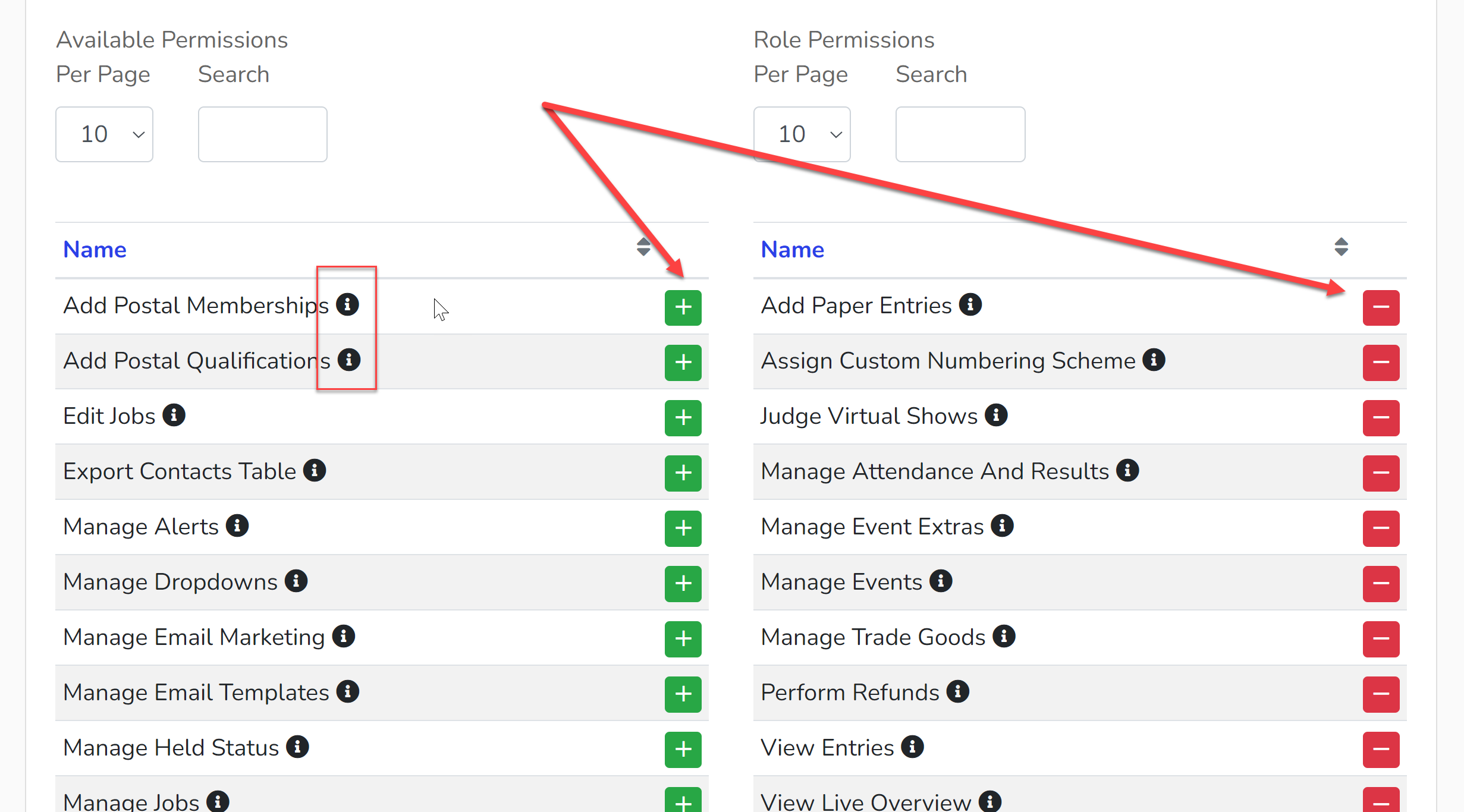
Once you have enabled/disabled the correct permissions for that role, click 'Save'.
To Add a New Role
1. Select 'Add New Role'.
2. Input the name of that role. Move the required permissions into the 'Role Permissions' column.
3. Select' Save'.