
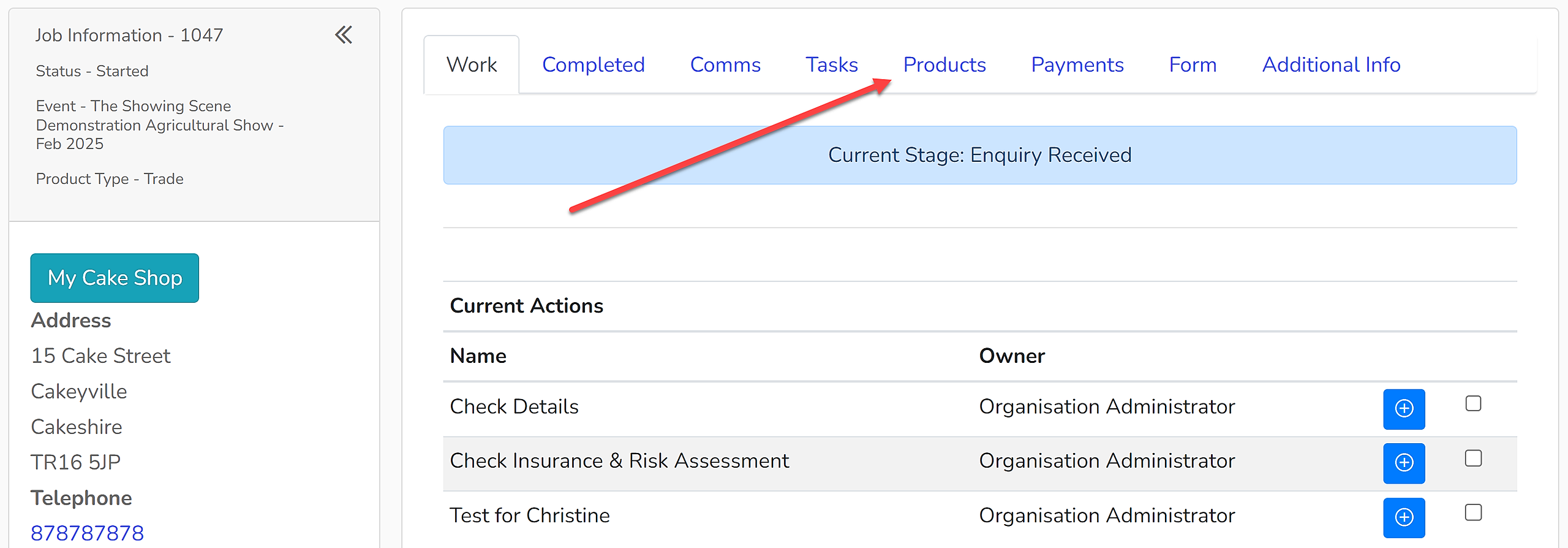
1. Open the enquiry you wish to refund and select the 'Payments' tab.
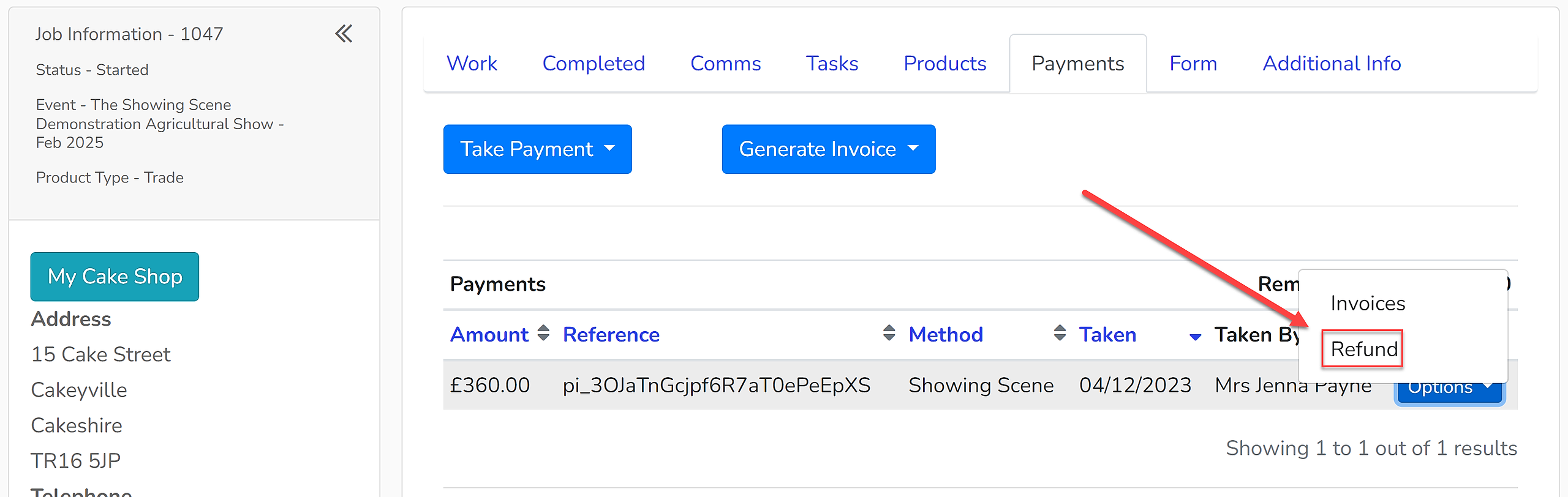
2. Against the payment to be refunded, use the 'Options' dropdown menu to select 'Refund'.
3. This will bring up a window from which you can select the payment to be refunded. Tick the box against the payment to be refunded.
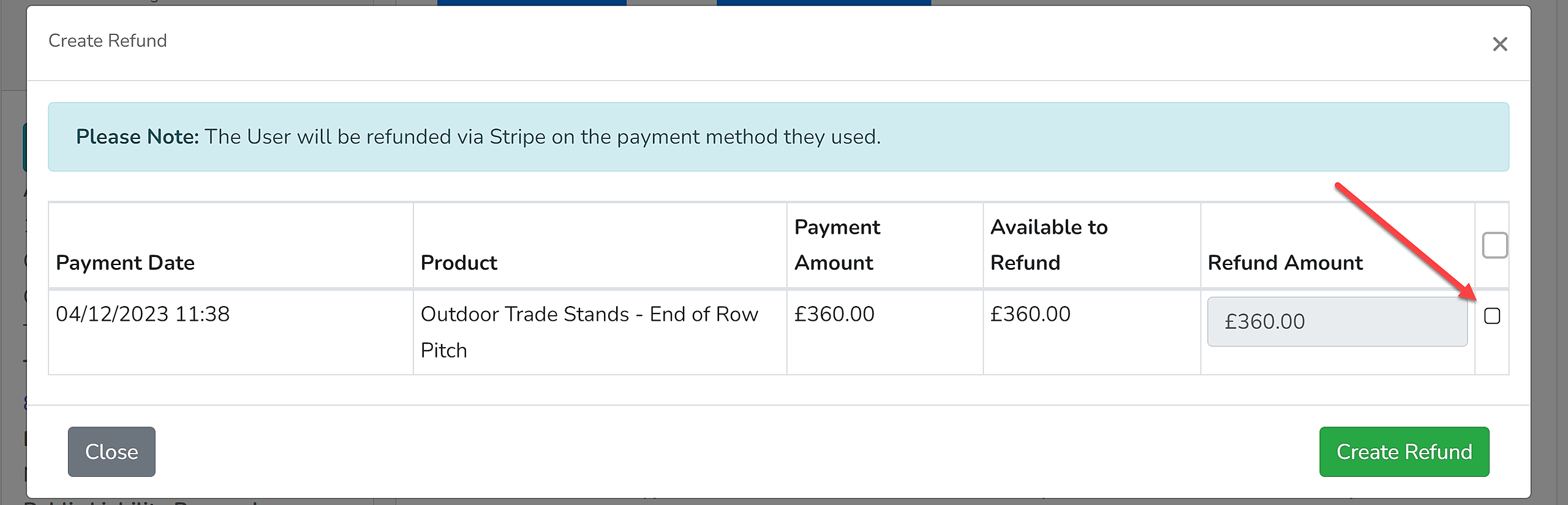
4. For payments that have been made via Showing Scene/Stripe, there is also the option to make a partial refund. To do this, tick the box as above against the payment and the 'Refund Amount' box will enable you to change the amount you wish to refund. Once you have the correct amount input, select' Create Refund'.
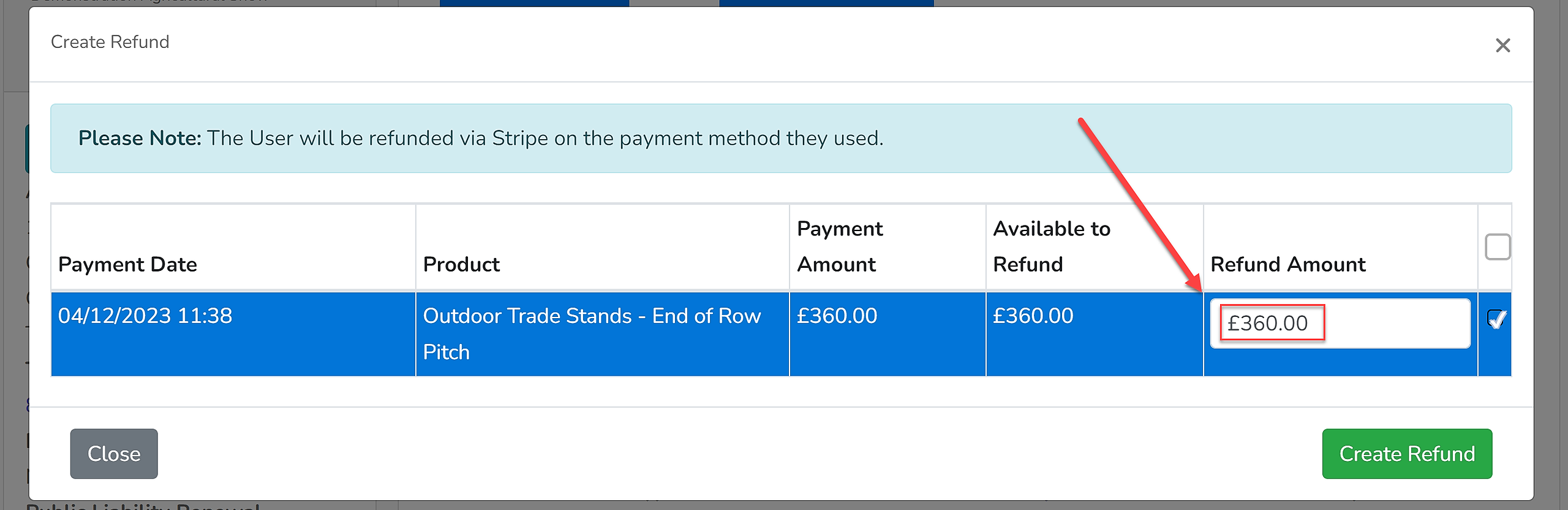
This will process the refund direct to the account through which the Stripe payment was made.
5. For payments made outside the system (e.g. BACS or cheque), there is not currently the option to log a partial refund. Please ensure the appropriate refund has been made as for these types of payment, Showing Scene is unable to action it.
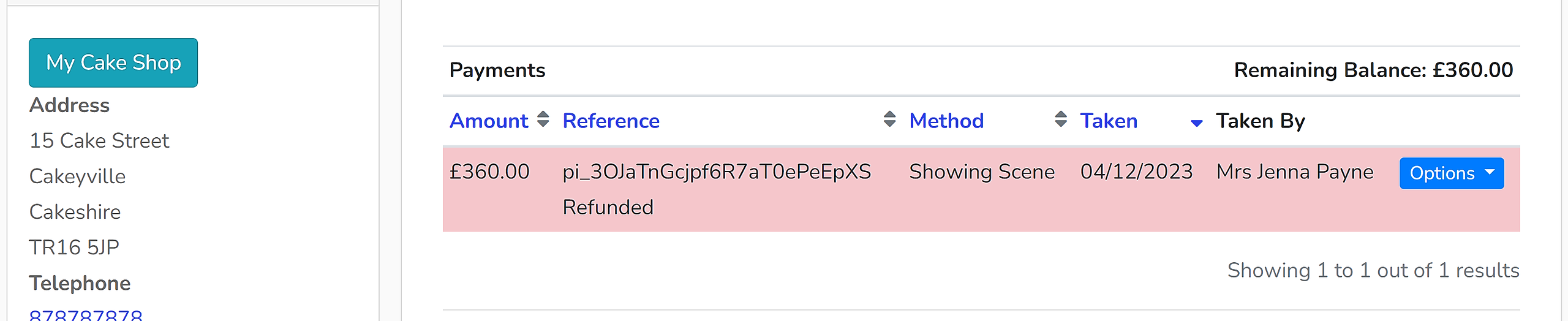
6. Once a complete refund has been made, the payment will show in red. Partial refunds will be logged within the 'Reference' section of the payment log.