

After an enquiry has been fully completed, there are occasions when it may need returning to the 'Started' or 'active' list, for example, an additional product has been purchased and requires invoicing. In such instances, the workflows will need reactivating.
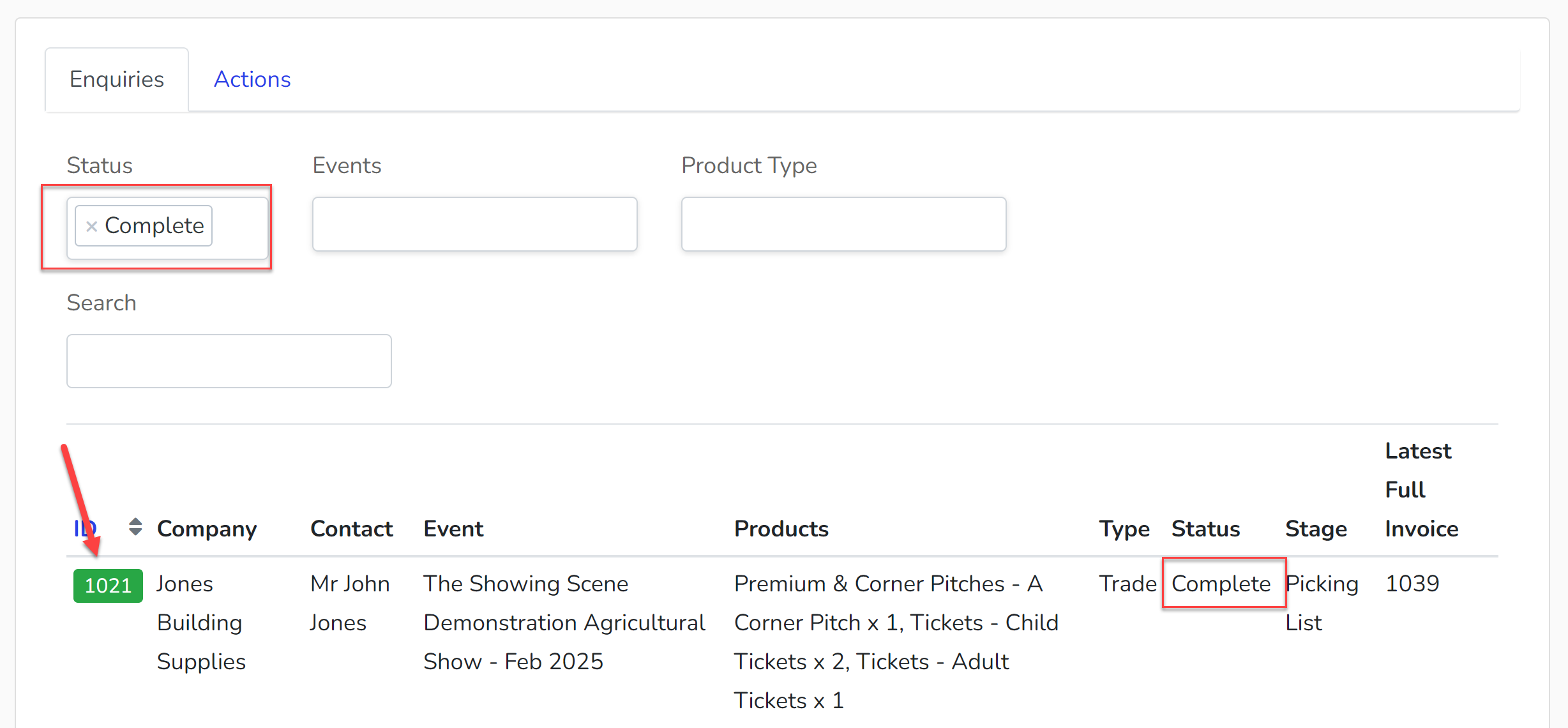
1. Bring up your 'Complete' list and find the relevant enquiry.
2. Make the changes to the customer's account, e.g. add additional products.
3. Select the 'Completed' tab which will show all the completed aspects of the workflow.
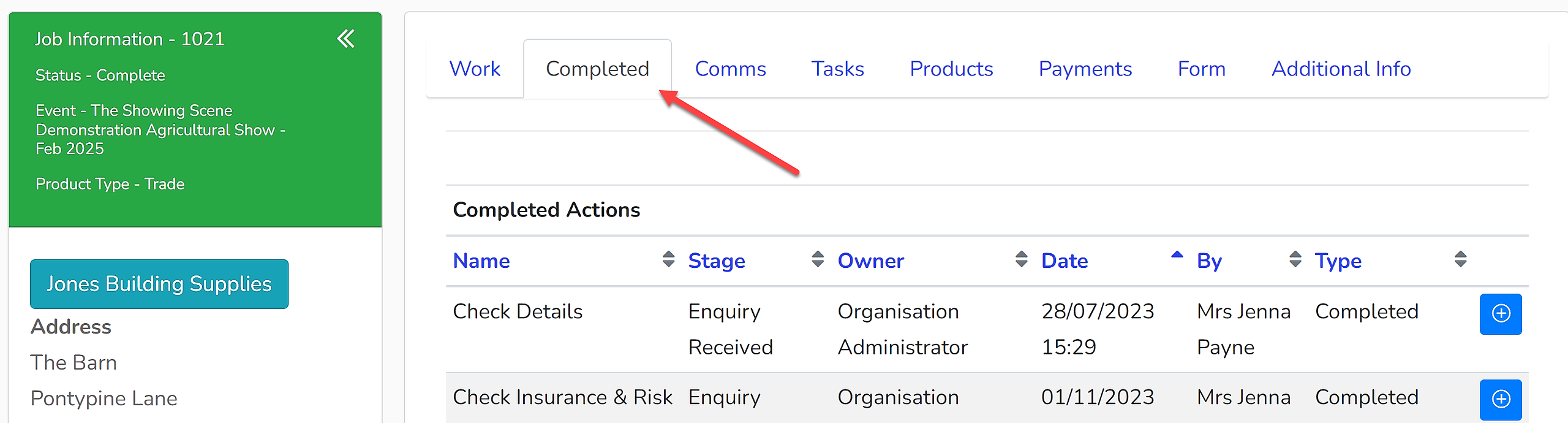
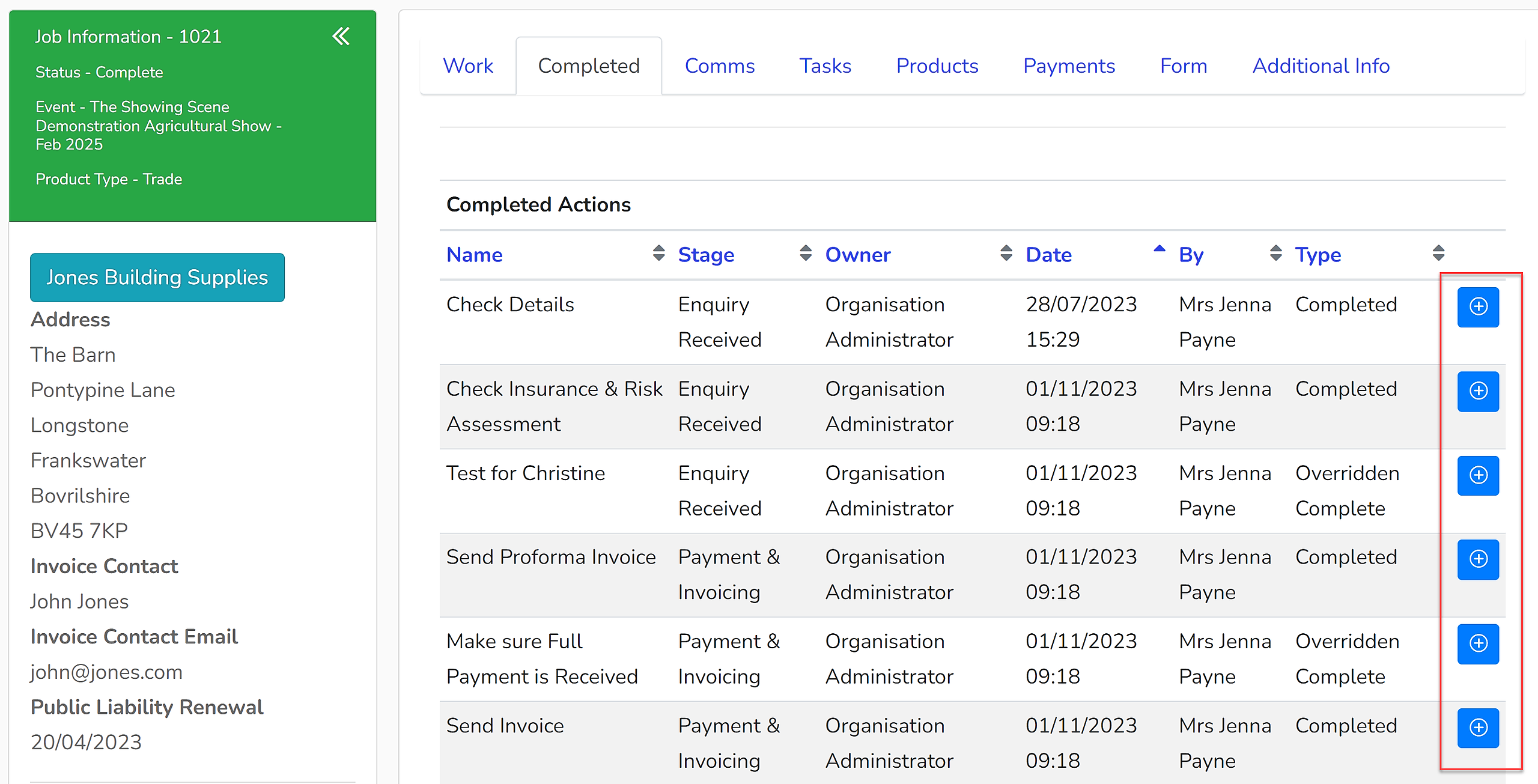
4. Identify which aspects of the workflow need reactivating, e.g. the element of the workflow that requires an invoice to be produced for that product, or the need to chase the full payment. Workflows are customised, so if you need specific advice relating to your workflow, please contact the Showing Scene team.
Click the blue button to the right of the relevant workflow action to be reactivated.
4. Select 'Re-Activate Action', input your password and select 'Re-Activate'.
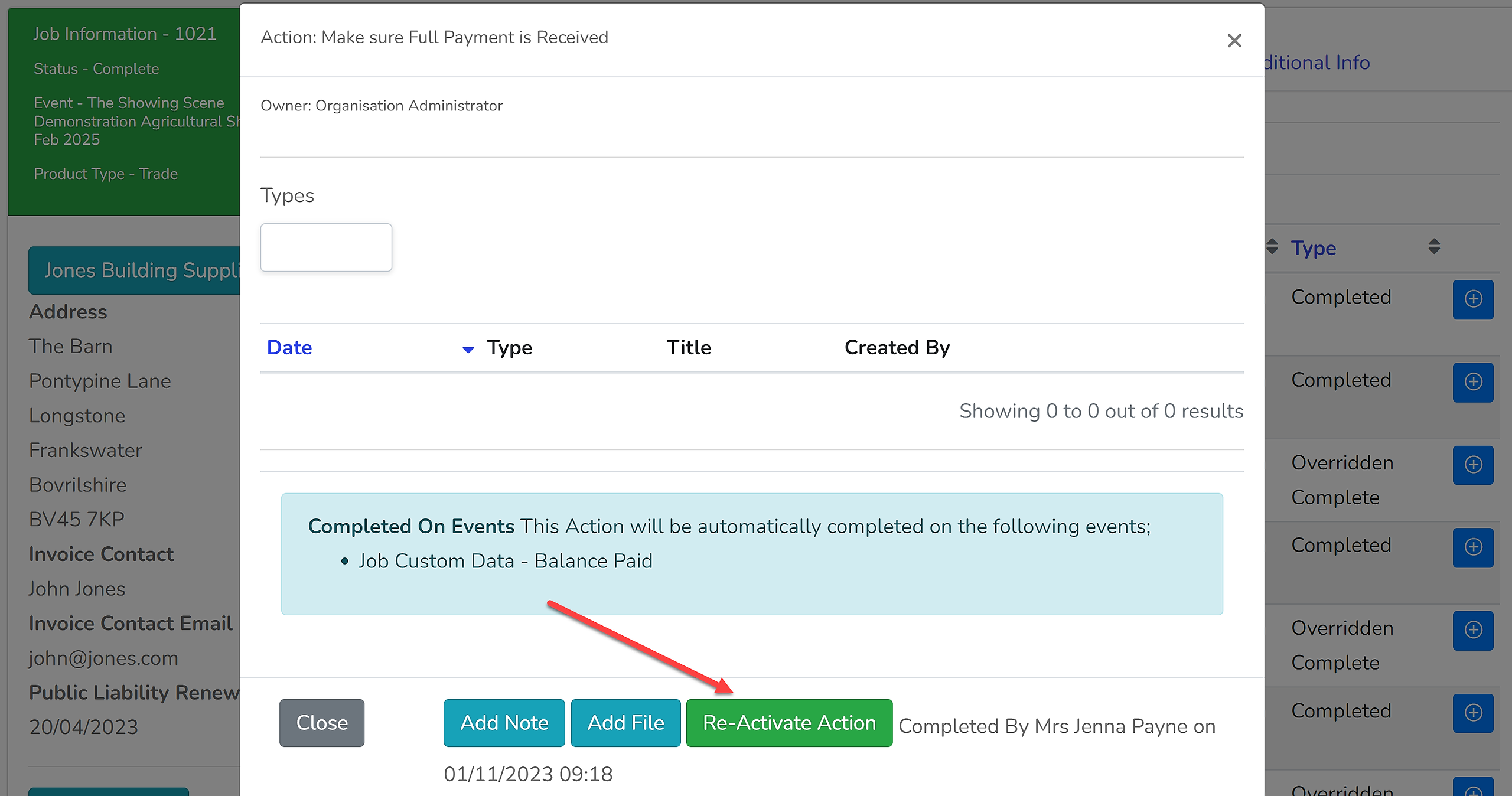
Repeat this for each of the actions that need to be reactivated for the enquiry.
The enquiry will no longer be marked as 'Complete' and will appear in your 'Started' or 'active' enquires list.